Using Lattice
Once Lattice is deployed within your infrastructure, access the user interface at https://lattice-ui.lattice.local. Note that as this UI is intended for internal use, it is not publicly accessible by default.
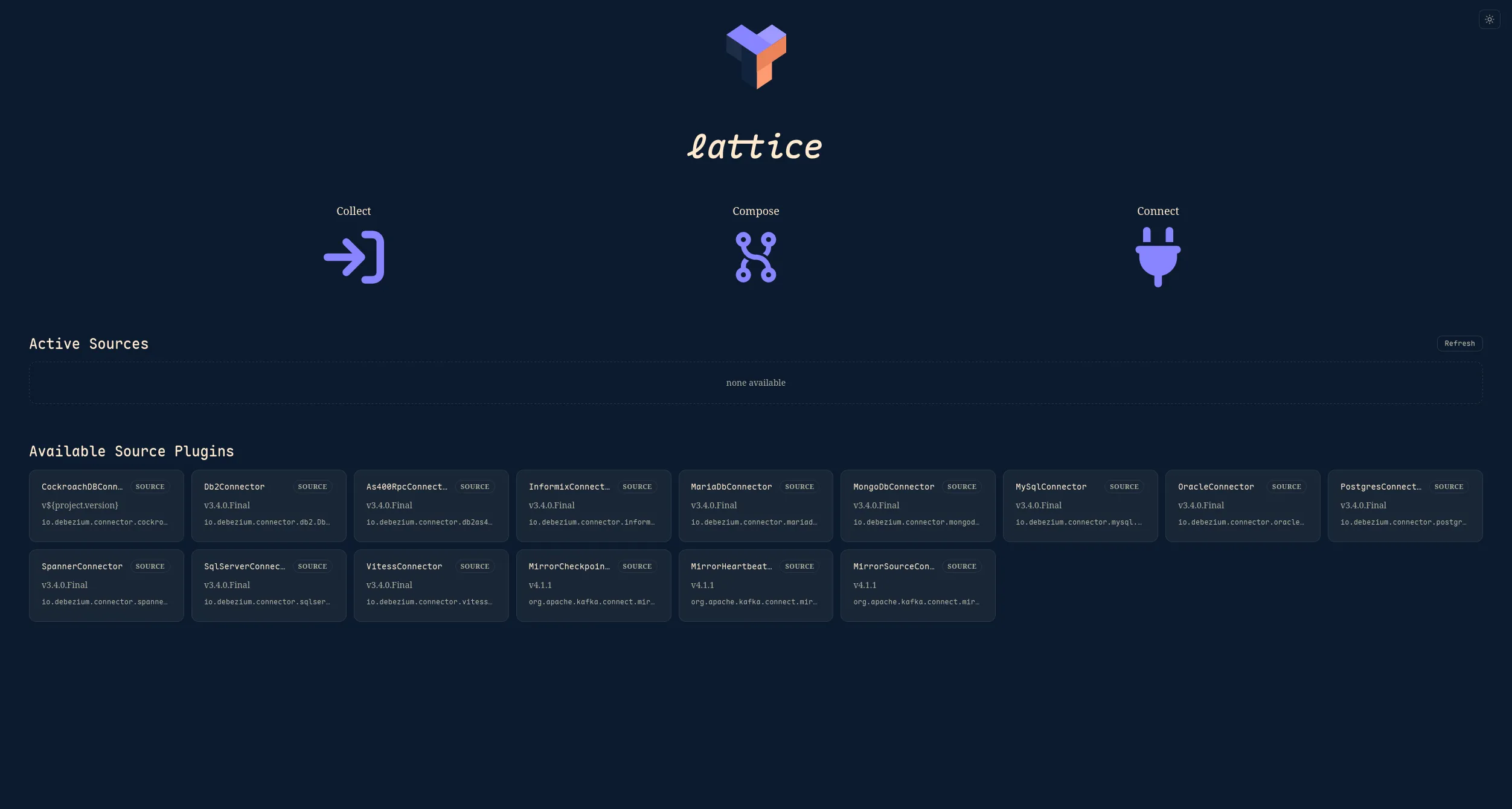
Create a Collector
Section titled “Create a Collector”After selecting Collect, you are presented with a list of available plugins.
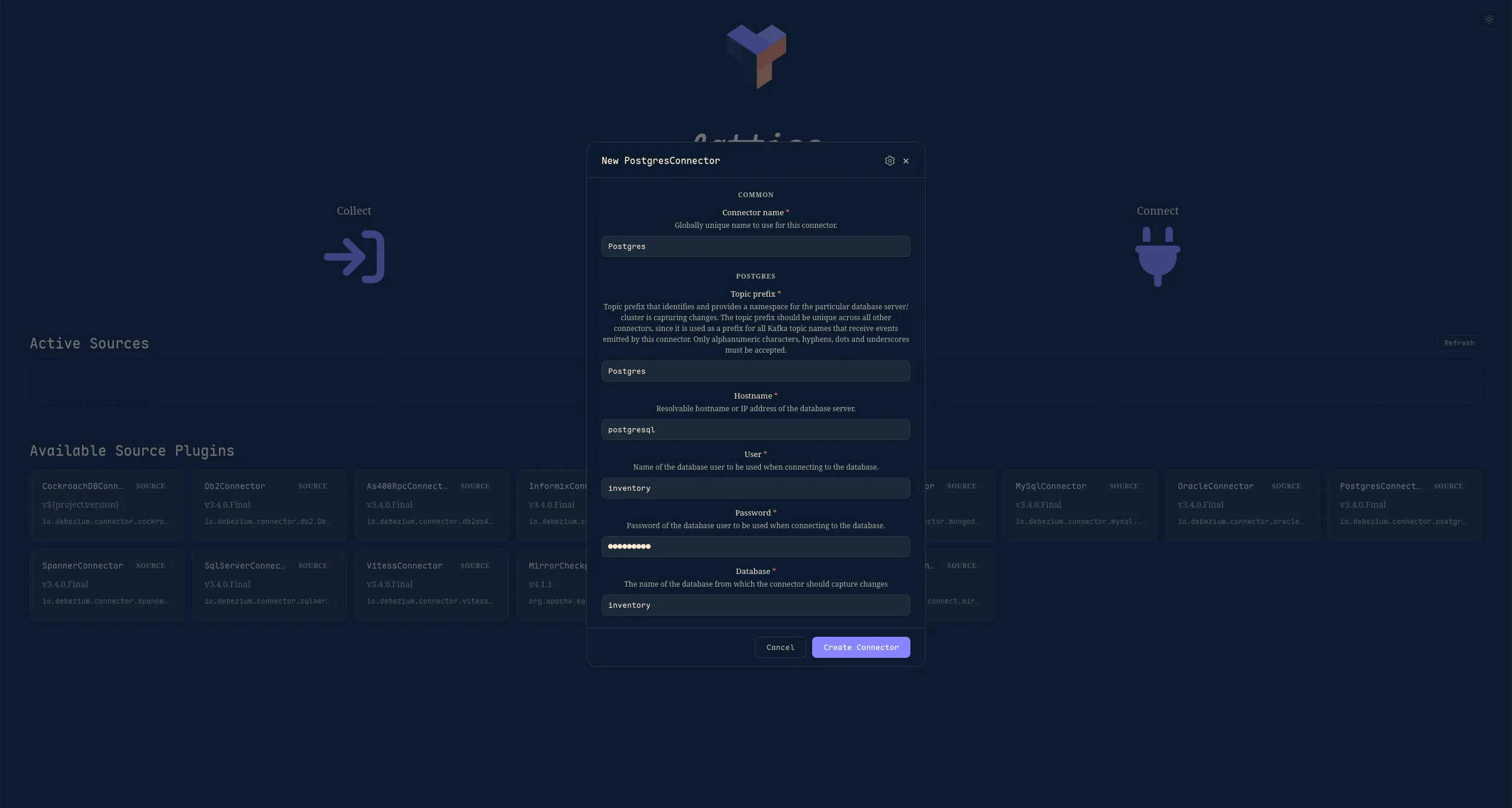
When you select a plugin, you will be presented with a form with all the required info. Additional configuration options are available through the settings wheel.
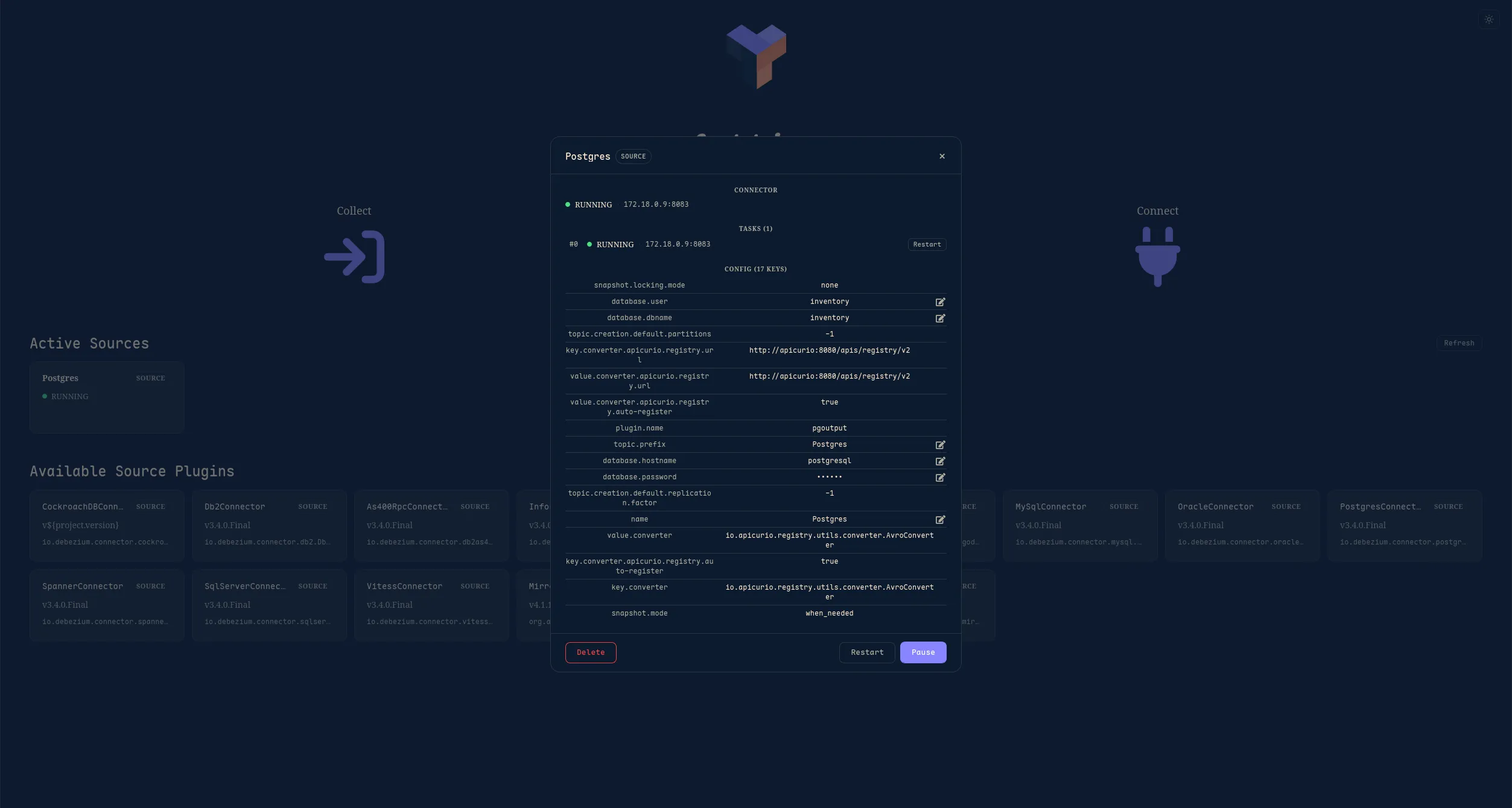
Once the collector has been created, it will appear in the “Active Sources” section, along with its status. The details page includes a tasks section, which shows the status of the collector’s connection to the target database, along with all of the configurations for the collector.
Viewing Topics
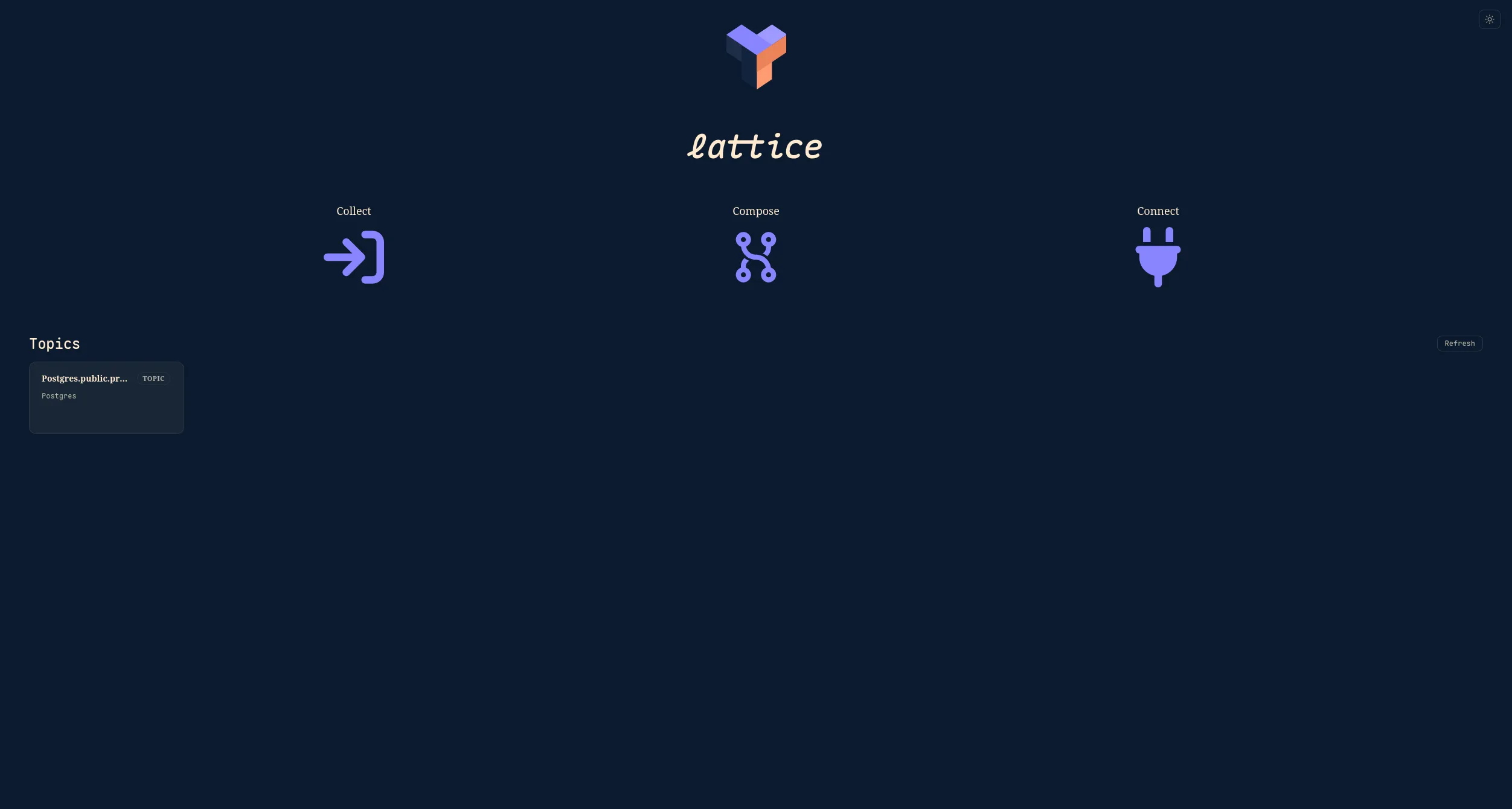
Section titled “Viewing Topics”Now, if you navigate to the Compose page, you can see the topics that have been created for your collector. Depending on the collector type, you may have to first cause some event to write to the topic before it can be viewed.
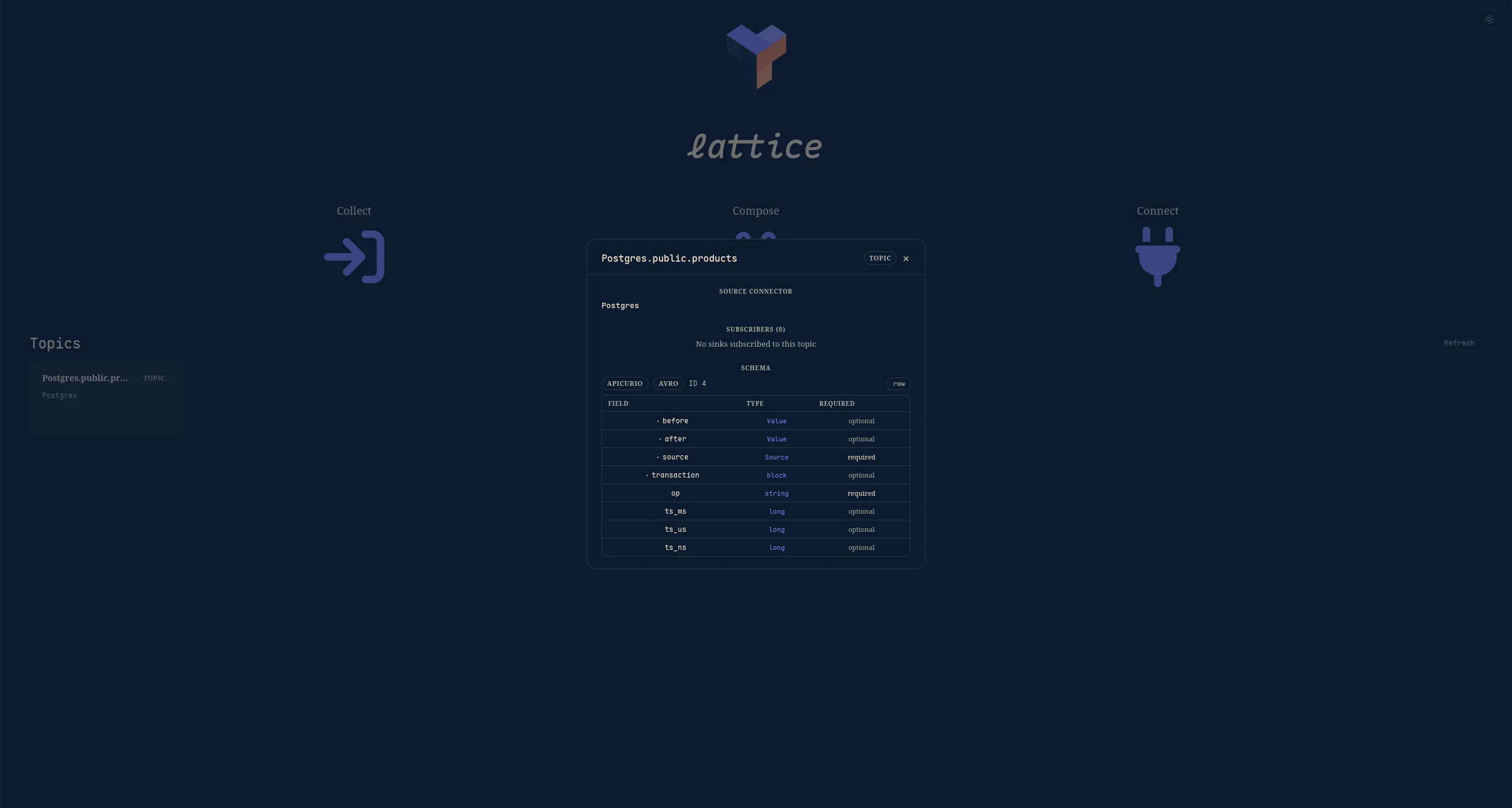
When a topic is selected, you can view its source, the list of subscribers, as well as the schema of the message in transit.
Creating a Sink
Section titled “Creating a Sink”Navigating to the Connect page, you are again presented with a list of available plugins to choose from.
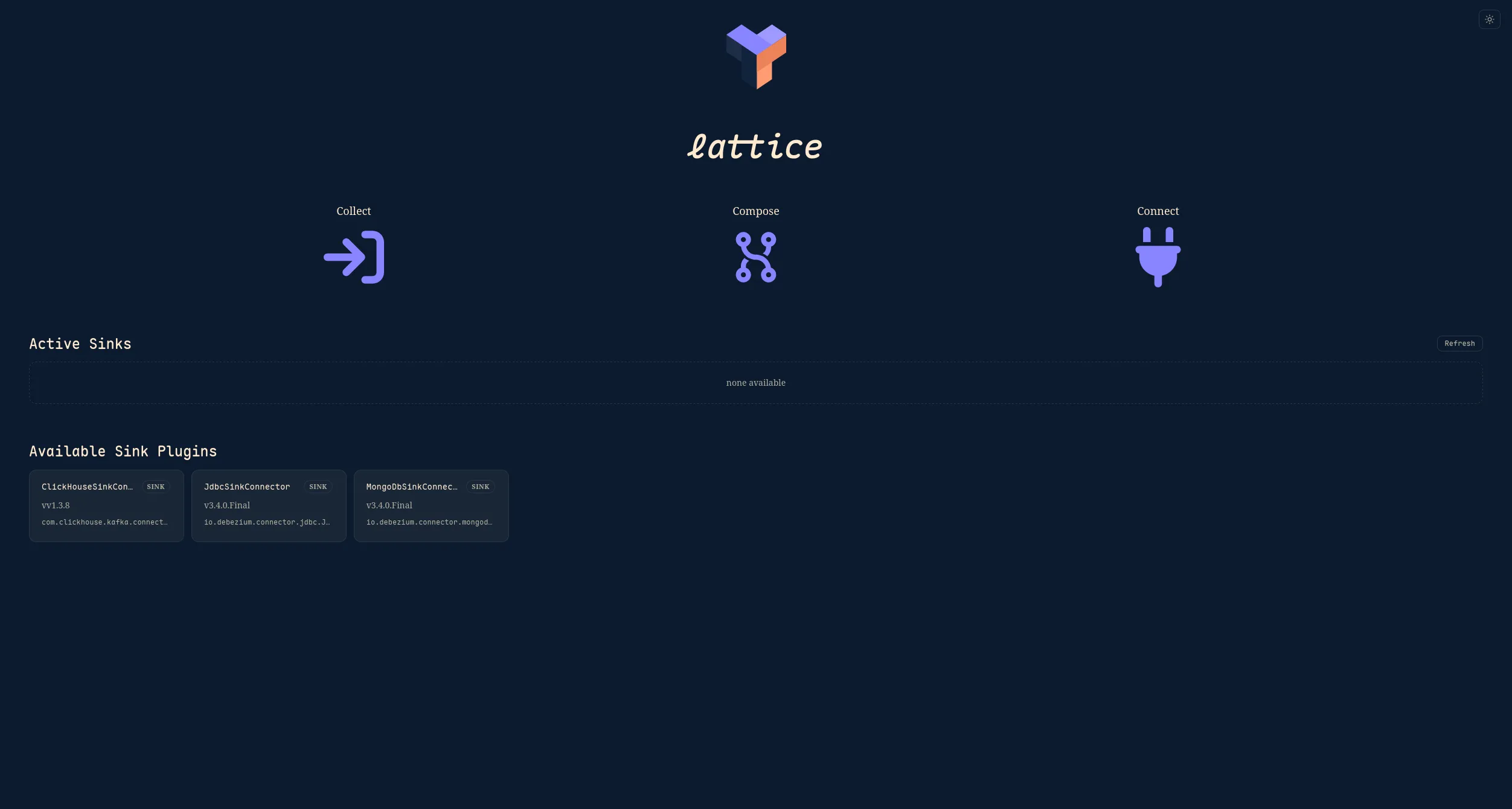
Like before, after selecting a plugin to fit your sink database, you must fill out the required information. This time, you also can select the topics you want this sink to be subscribed to.
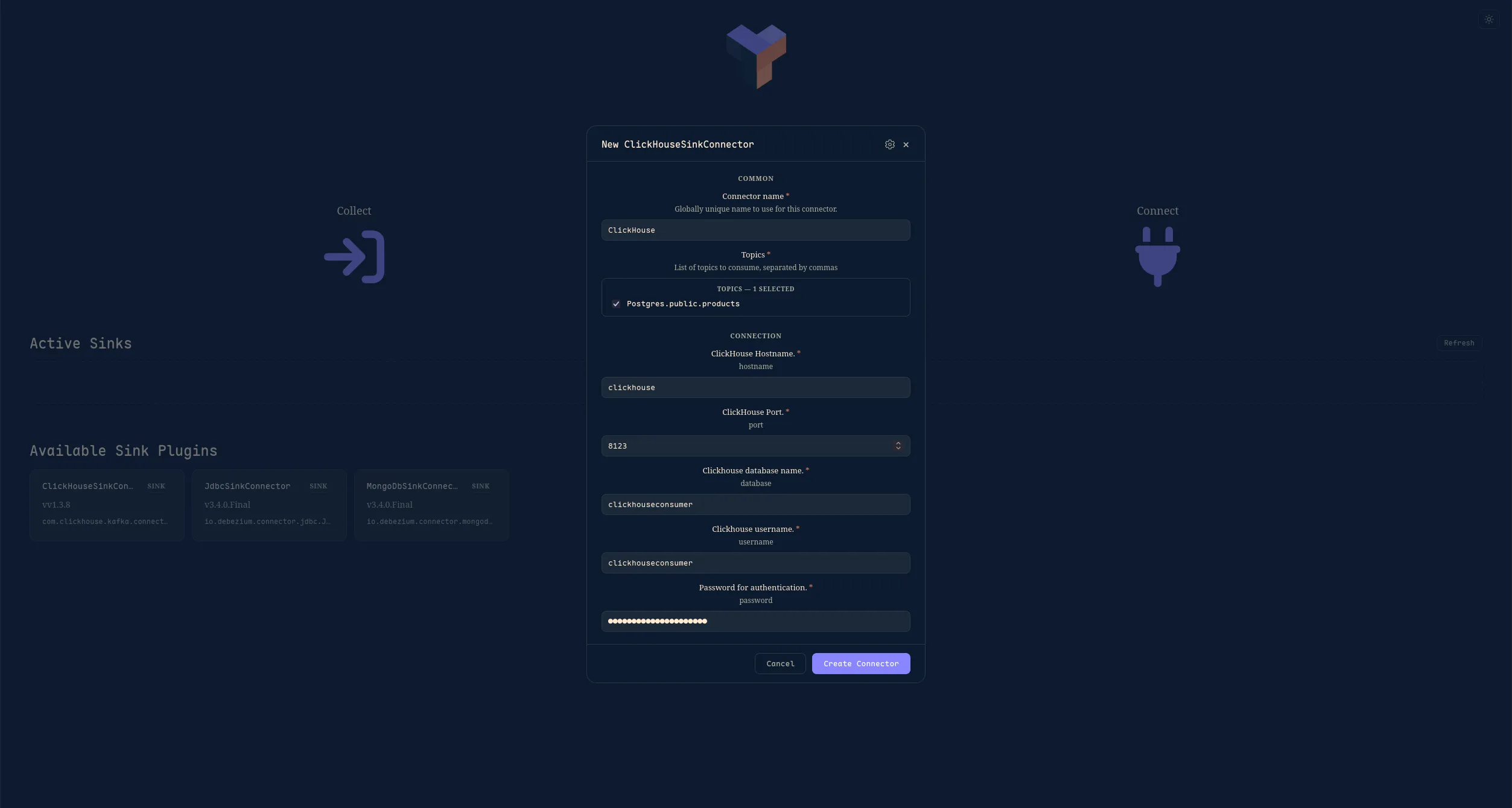
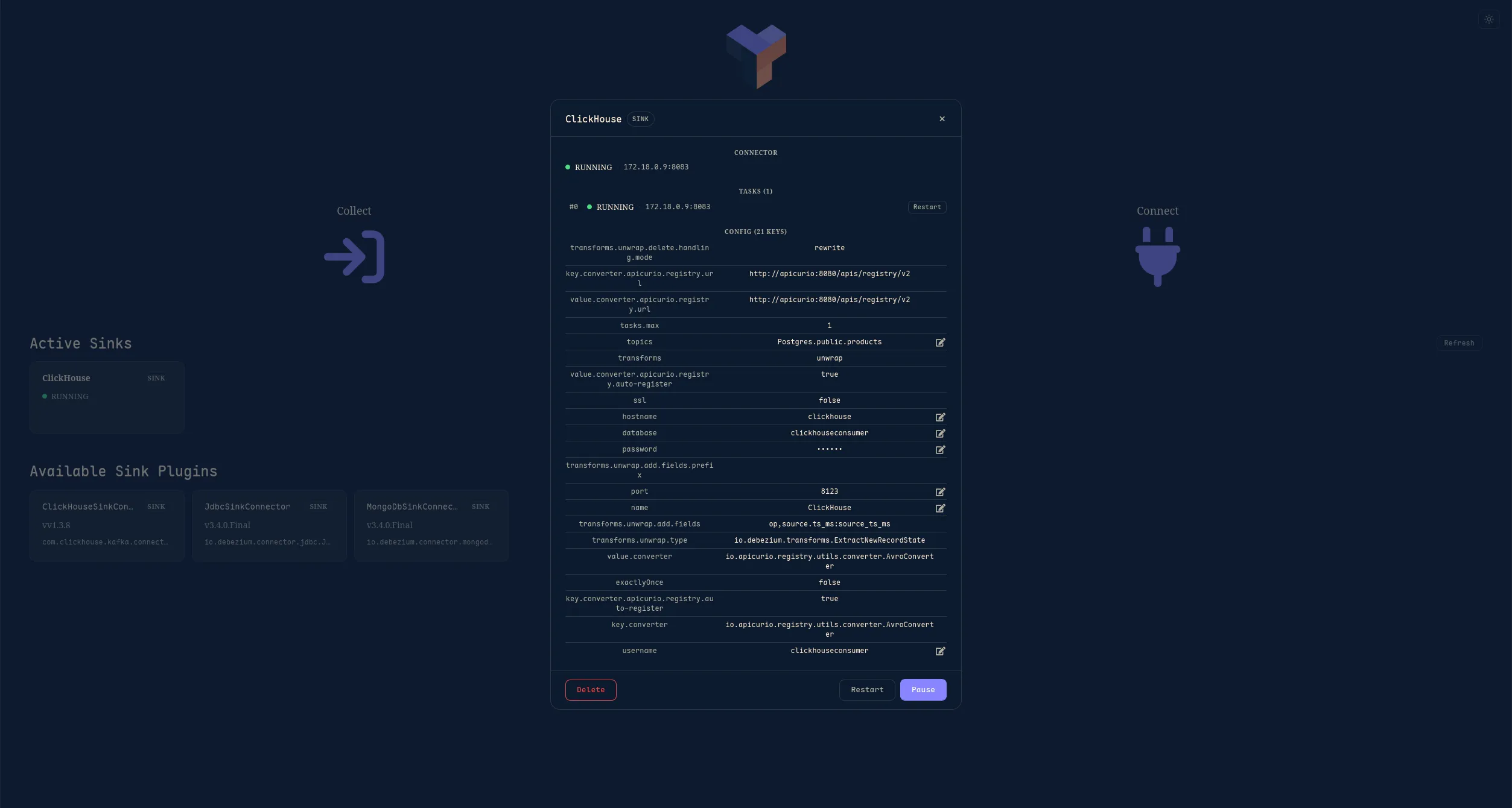
Once the sink connector has been created, you can select it to view its details. Just like with collectors, its status, the status of its database connection, as well as its configuration are viewable.